Chinese Input for Windows CE (ChinInp) |
HPC version 1.9 PPC version 1.12 |
Chinese Input for non-Chinese WindowsCE device mainly for Handheld PC and Palm-size PC,
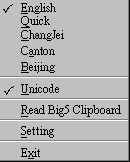
Here is four input method available,

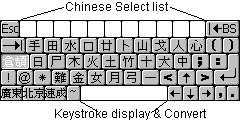
Changjei Input Method
Canton Phonetic Input Method
Beijing Phonetic Input Method
Changjei Quick Input Method
RE: All input methods are support wildcard "*" character search, except Changjei Quick Input.
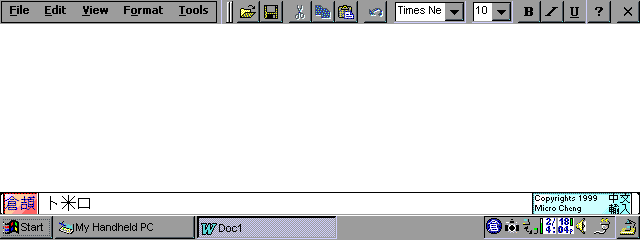
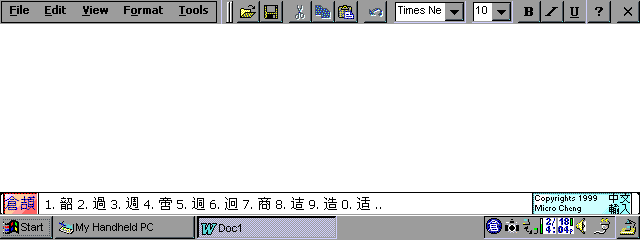
18 Feb 1999 night, First version
23 Feb 1999 night, Add Hot key for call up input area
11 Apr 1999 night, HPC Pro compatible.
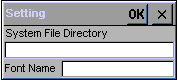
20 May 1999 night, add setting menu.
20 Jun 1999 early morning, add Big5 Clipboard Reader.
25 Jun 1999 night, change Big5 clipboard Reader dialog add multiple line support.
7 Jul 1999 night, add Changjei Quick Input method.
27 Sep 1999 night, fix Changjei Quick Input method bugs.
2 Dec 1999 night, add support Palmsized-PC with External Keyboard.
10 Jan 2000 night, add Palmsized-PC support.
31 Jan 2000 night, fixed unstable of Palmsized-PC Input panel.
1 Feb 2000 night, fixed Handheld PC Square character on Dialogs, add Convert Chinese internal code on Dialogs.
add Stylus select on Chinese Choice List
(Windows CE 2.10 or up Only)
You can download Unicode Chinese font from other web page, such as,
CE Note for WindowsCE Link Disappeared.
CE Star for WindowsCE Font Name "UniSun"
or you may download MSHEI.TTF from Windows 98/IE 5.0 (1.9Mb) Font name: "MS Hei"
or you may download MSSONG.TTF from Windows98/IE 5.0 (2.4Mb) Font name: "MS Song"
Put the font files into \Windows\Fonts directory of your WindowsCE device.
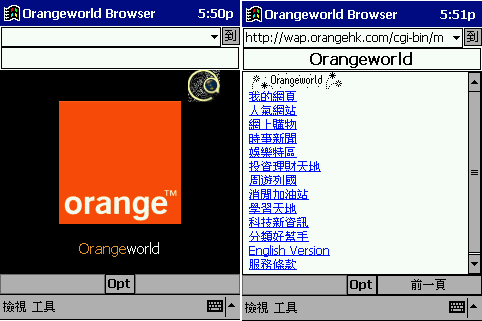
If you want to be able to view Chinese Web page on your Windows CE device, just download a software call JPX from NEC after install.
Type in "jpxbig5.dll" into "Language Pack", and Type the Chinese font name into "Font Name", and Set the Proxy Server in Pocket Internet Explorer, type in "localhost" into "Proxy Server" with "8000" port.
Details of JPX please refer to the web page.
You can use my freeware Data for WindowsCE with this Chinese input, then, you can input and display Chinese character of Contact's Addresses.....
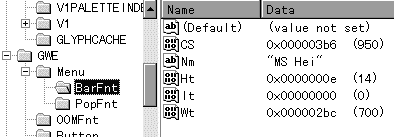
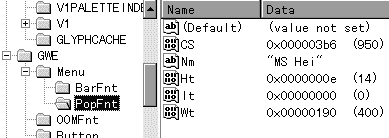
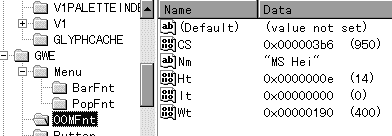
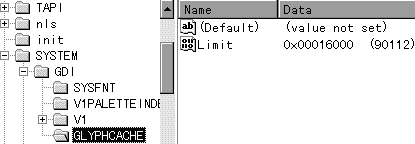
HKEY_LOCAL_MACHINE\SYSTEM\SYSFNT\Nm = Font name you have download.
HKEY_LOCAL_MACHINE\SYSTEM\CS\Nm = 950 (Decimal)
| [Ctrl]+[Space] | Toggle Chinese Input |
| [Shift]+[ESC] | Switch between each Chinese Input |
| [Ctrl]+[Alt]+1 | Open Changjei Input |
| [Ctrl]+[Alt]+2 | Open Canton Input |
| [Ctrl]+[Alt]+3 | Open Beijing Input |
| [Ctrl]+[Alt]+4 | Open Changjei Quick Input |